
Test Object List
All Test Objects in a project are listed in Test Object box. You can search, create, edit or delete here.
Create・Edit Test Object
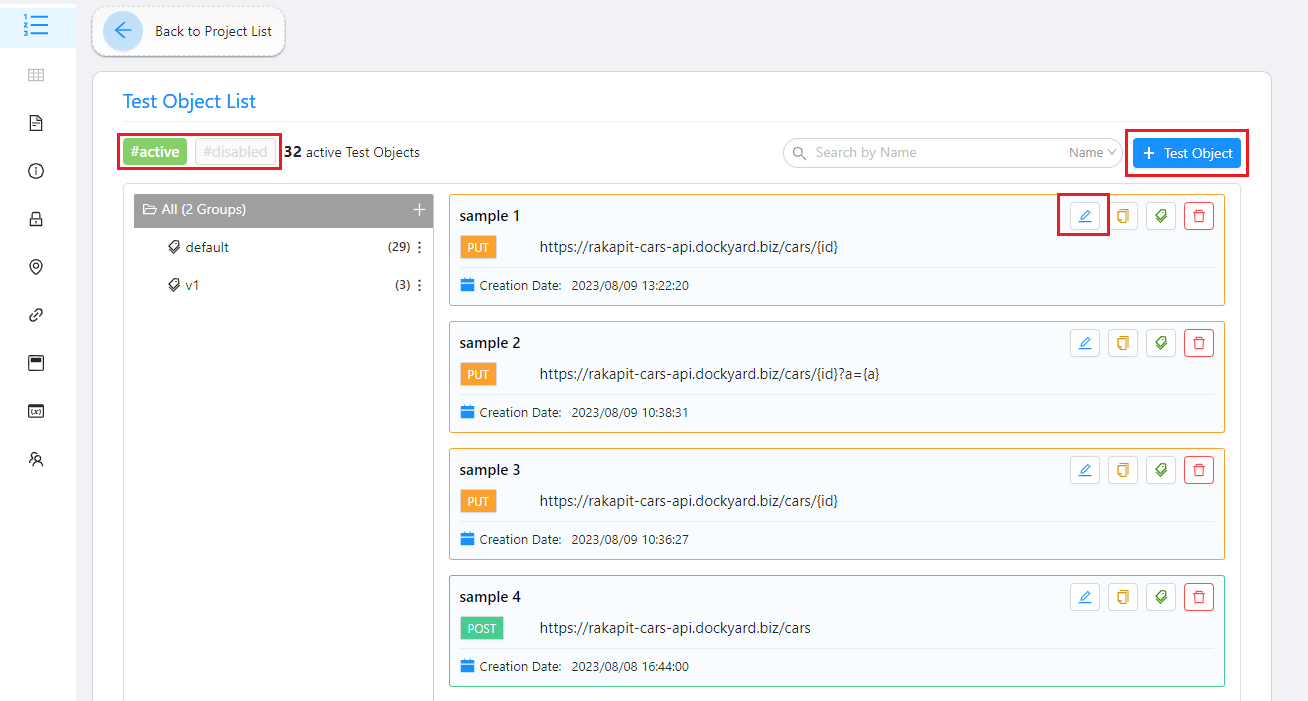
Test Object
-
Add new Test object:
- Click + Test Object button.
- Then, modal for create Test Object will open.
-
Edit the Test object name:
- Click edit icon.
- Edit the Test object name.
- Click save icon.
※Maximum number of Test objects in a project: 64.
Test Object Grouping
It can organize Test Objects by groups, make it easier to manage Test Objects.
Create Test Object Group
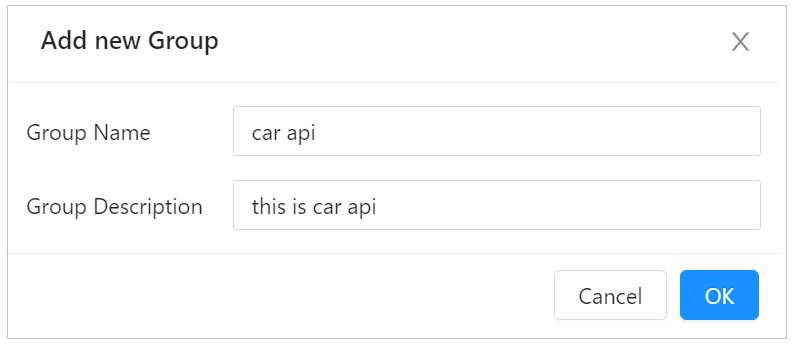
Create Test Object Group
Create a Test Object Group by following steps:
- Click on (+) in the Group list on the Projects screen
- Enter Group name and description
- Click OK
Edit Test Object Group
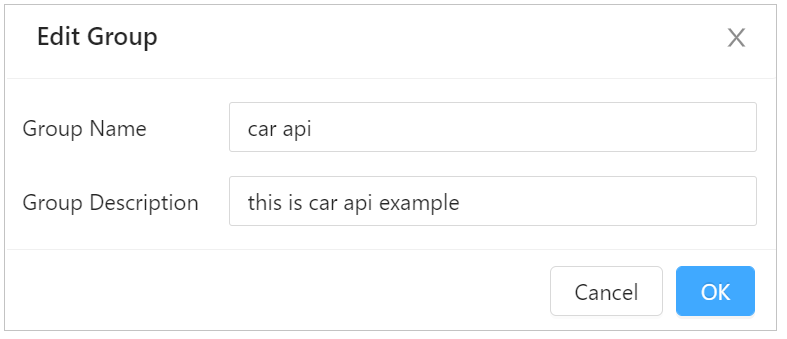
Edit Test Object Group
Edit Test Object Group by following steps:
- Click on (︙) in end of Group that you need to edit in the Group list on the Projects screen
- Select Edit Group
- Edit Group name and description
- Click OK
Delete Test Object Group
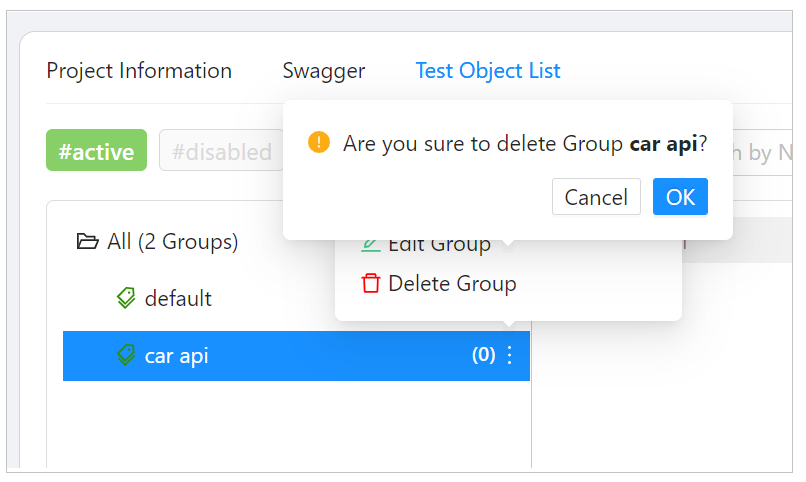
Delete Test Object Group
Test objects included in deleted Group will automatically be moved to the Default Group.
Delete Test Object Group by following steps:
- Click on (︙) in end of Group that you need to edit in the Group list on the Projects screen
- Select Delete Group
- Click OK
Insert existing Test Object(s) to Group
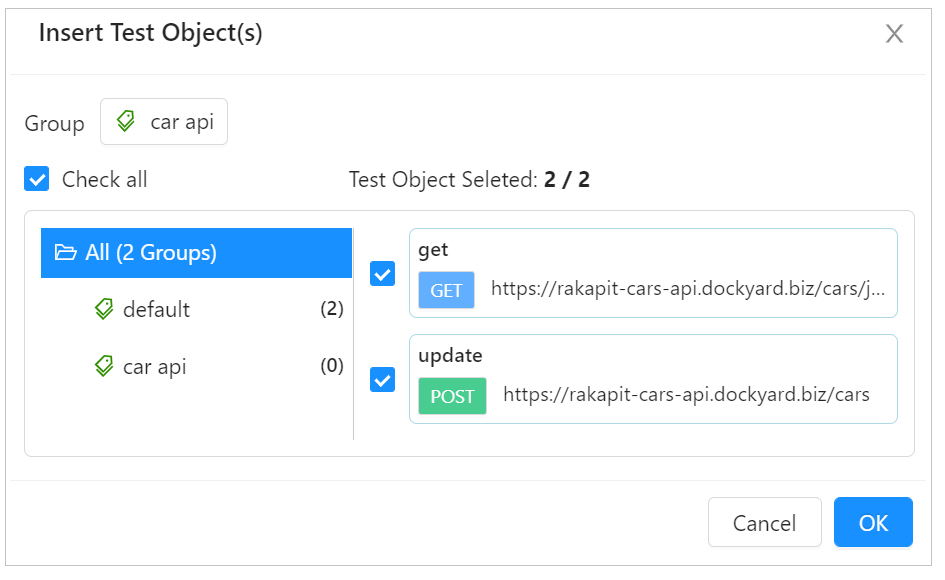
Insert existing Test Object(s) to Group
We can insert Test Object to other Group by two ways.
One is to change Group name of one Test Object
- Click on Tag icon in Test Object list.
- Select the Group
- Click OK
Other is to insert multiple Test Objects at once
- Click on (︙) in end of Group that you need to edit in the Group list on the Projects screen
- Select Insert existing Test Object(s)
- Select Test Object(s)
- Click OK
Change Project
Now you can move Test Object to another Project.- Click at Tag icon displayed on each screen
- Select Change Project tab
- Select the Project that you want to move Test Object in
- Select Group
- Click OK button
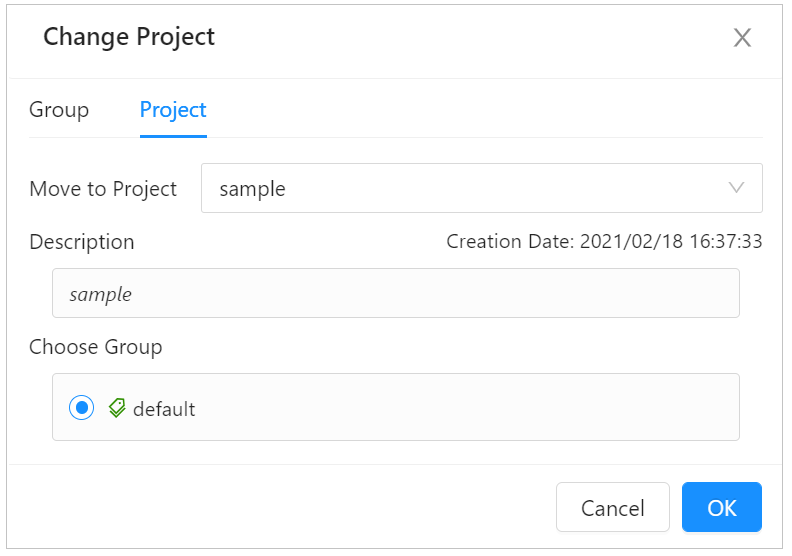
Change Project
Search Test Object
- It's possible to search for test objects in Projects screen, by Method, URL, Test Object Name or Creation Date.
- Projects Screen: search bar is in the upper right of Test Object List table, choose search object and enter keyword.
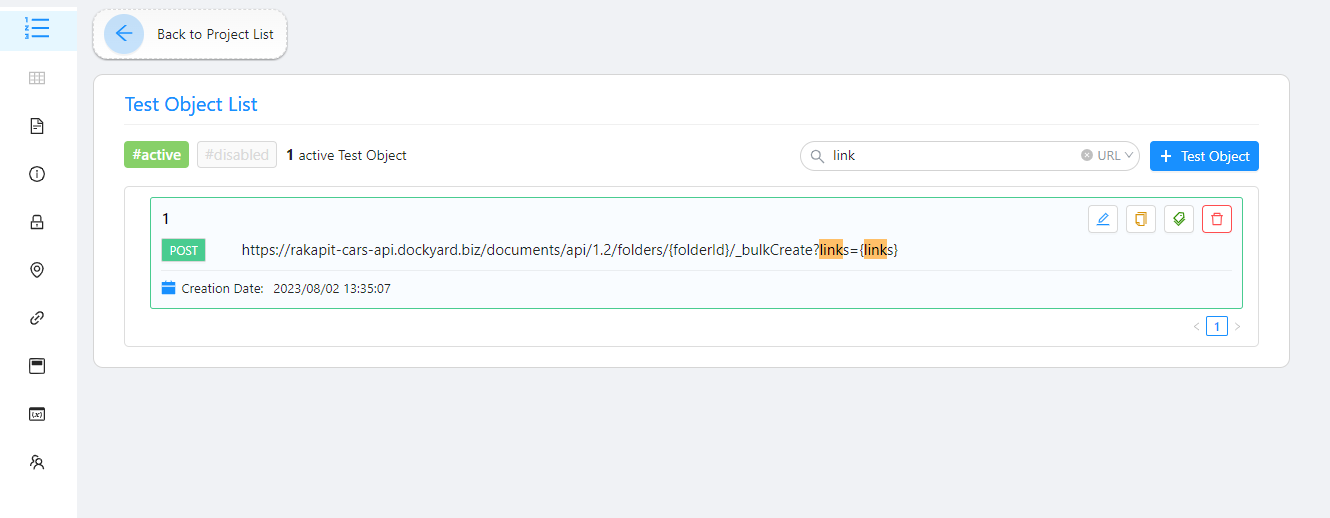
Search Test Object at Project Screen
Disable Test Object
When disabling the Test Object, you can't edit or use Test Object.- Click icon Delete.
- Click the Disable Test Object button.
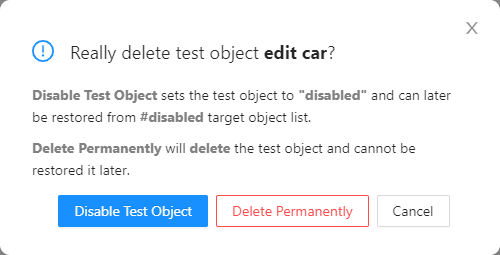
Confirm Dialog
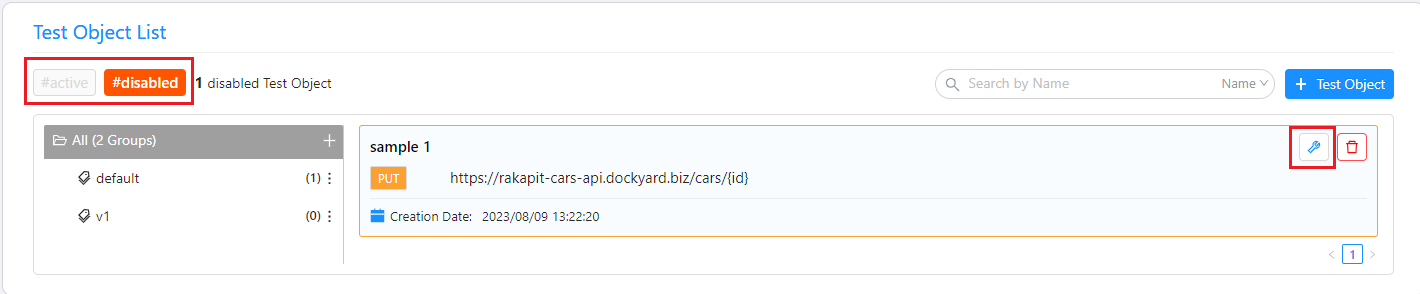
You can check the disabled Project from #disabled on Test Object List.
Restore Test Object
You can restore the disabled Test Object.- Click tab #disabled on Test Object List.
- Select the Test Object you want to restore.
- Click the Restore button to restore project.
Delete Test Object
You can delete the Test Object.Please note that if you delete it, you can't restore the data.
- Click the icon Delete.
- Click Delete Permanently
- Click button in the confirmation dialog to delete.