
Project Setting
You can set common information that is used throughout your Project.
How to set up Project Setting
-
It can be set with the following steps.
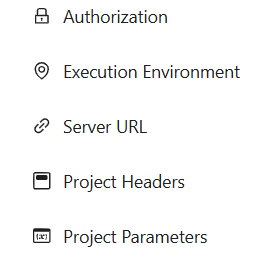
How to set up Project Setting- URLs ・URL information can be used as common data.
- Click on the Server URL.
- Enter the Endpoint to be shared.
- Click OK.
- Authorization ・Authentication information can be used as common data.
- Click on the Authorization.
- Select the Authentication information you want to use.
- Enter common data.
- Click OK.
- Execution Environment ・The Execution Environment can be set as common data.
- Click Execution Environment.
- Select RakAPIt Server or Local Environment.
- Parameters ・API Parameters and Data Patterns can be set as common data.
- Click Parameters button.
- Enter Parameter name.
- Set type/value/normal in Data Patterns of the Parameters.
- Click OK button.
・The set URL can be referenced at Server URL and Auth API's Authorization.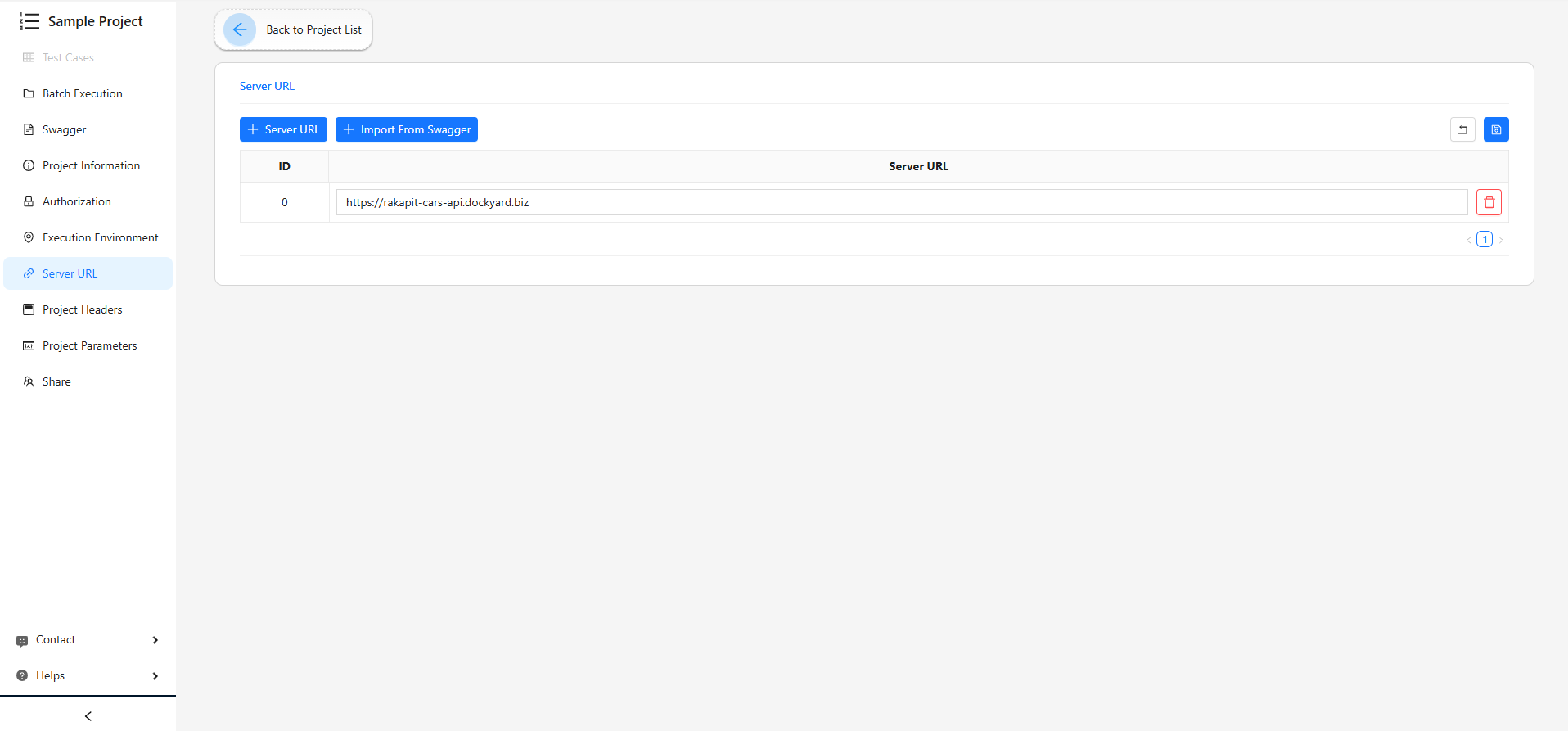
Server URL
・The set Authentication information can be referenced and duplicated when the authentication information is set at create Test Object.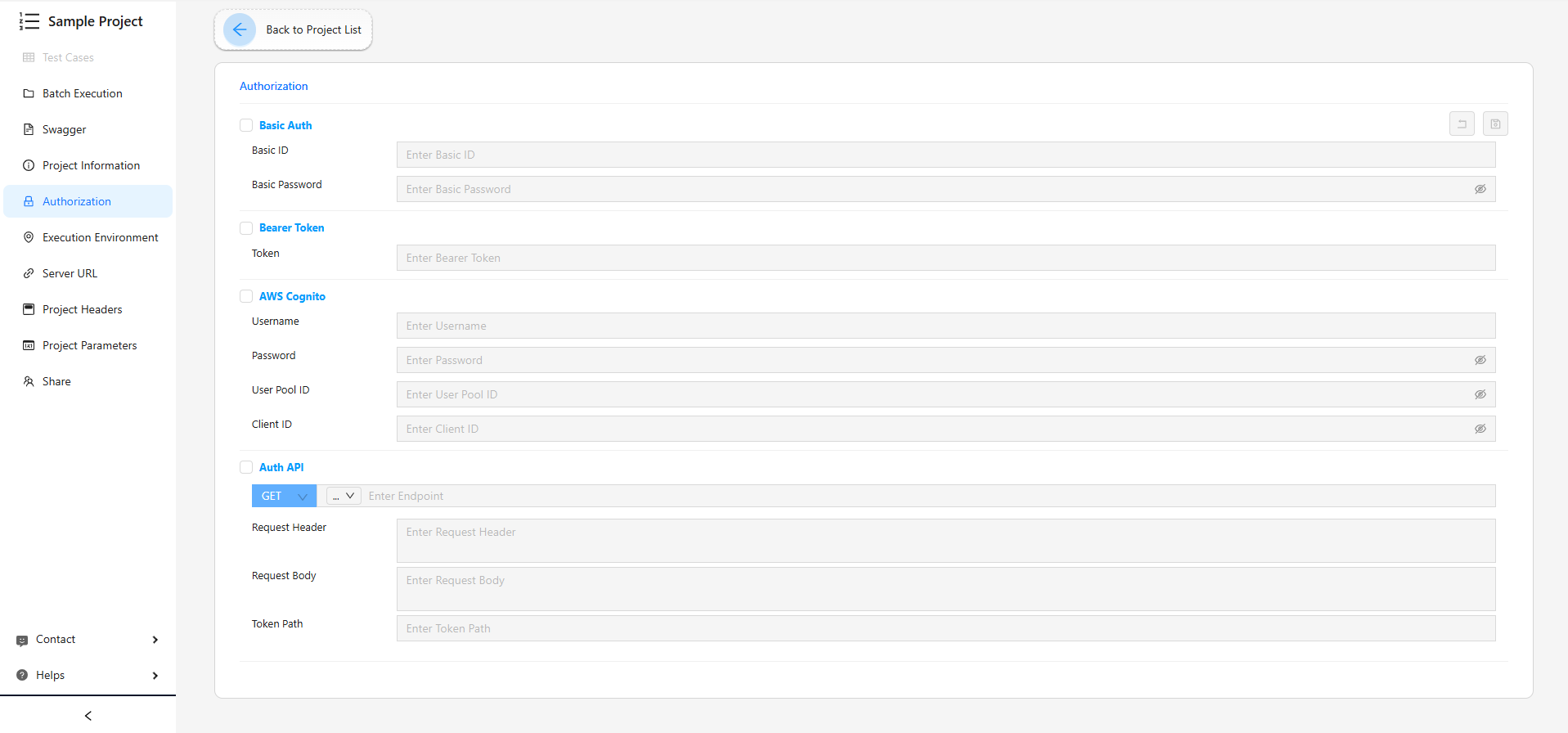
Authorization
・The set Execution Environment will be the default setting when sending a Request.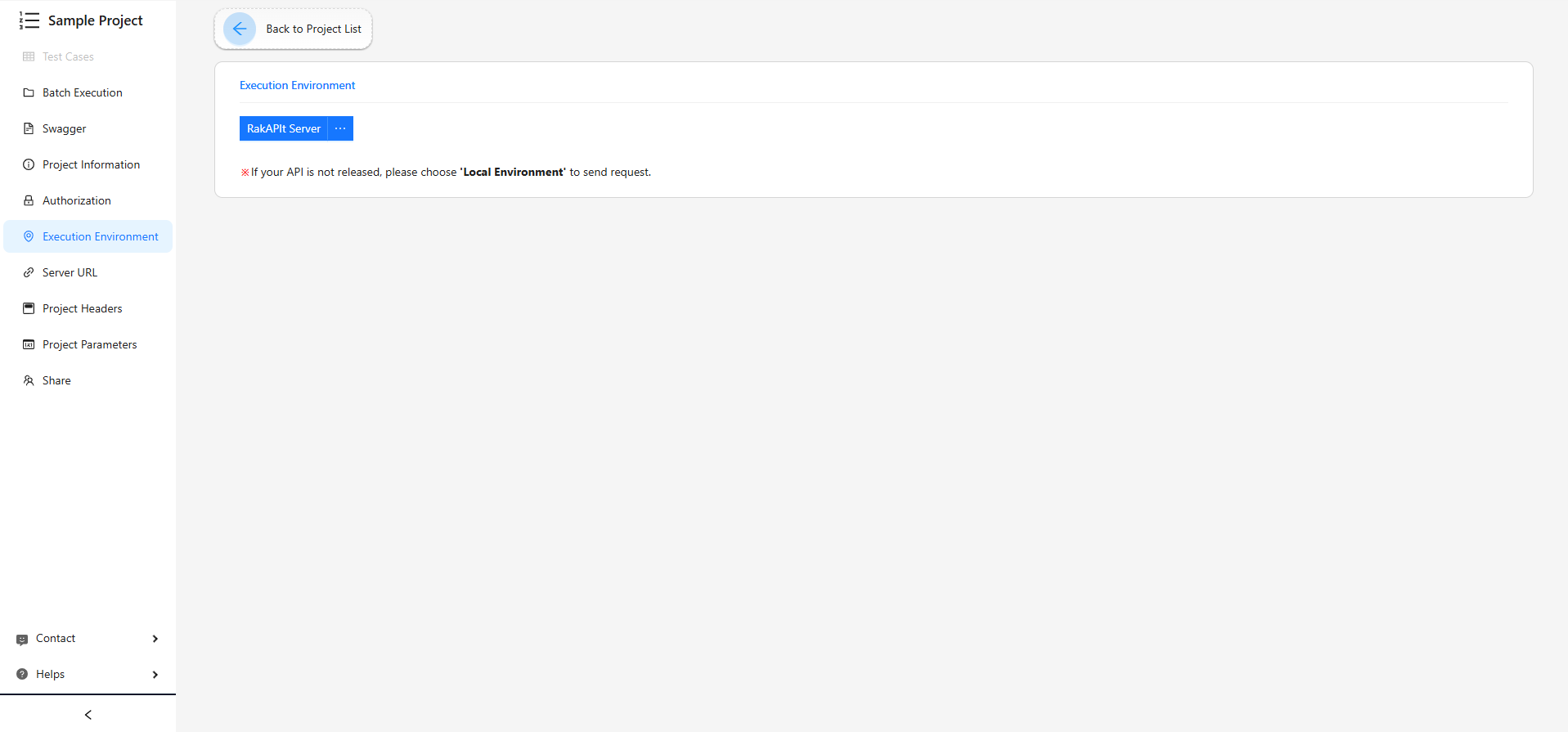
Execution Environment
・Those parameters can be referenced when generating data patterns at create Test Object.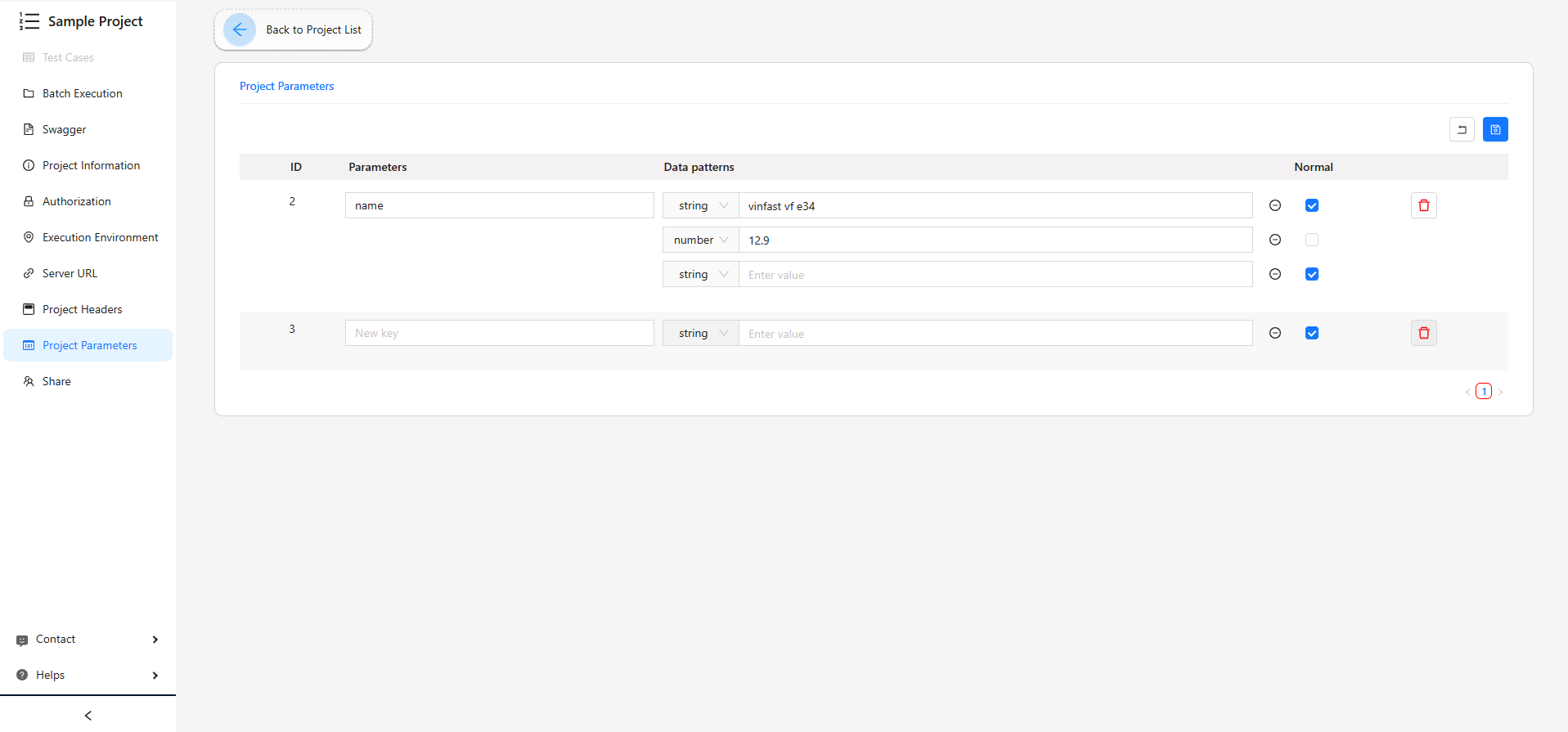
Common Parameters
Method of using Project Setting
-
・Use the set common data.
-
URLs
・The Common URL can be referenced.
・You can enter a character string added to the URL referenced.
・It is possible to add Path parameter and Query parameter in the added series.- Select the URL you want to reference.
- Enter the string of characters you want to add to the URL.
- Enter other required values and save.
-
Authorization
- Press Reference from Project Setting of Authorization.
- In case of reference setting, create test case as it is.
- Press Edit to duplicate / edit the referenced data. When you press Edit, the common data will not be referenced.
- Change the value and create Test case.
-
Execution Environment
Send Now, Run Test case, Execution Environment will be set according to the environment installed in Project Setting.
-
Parameters
The Common Parameter value type will be changed into string or empty depending on where it's used.
- URL Parameter
- Header Parameter
- Body Parameter
- xml
- text
Only if Request Body is a Json object, Data patterns type in the Body Parameters will not change.
- Click Edit Data patterns icon and the Edit modal will appear on the screen.
- Click Generate data icon in each parameter you want, then choose Reference from Common Parameter.
- Select Parameter, and click OK.
- Generated parameter can be customized if needed without affecting source (Common Parameter).
・Common data can be referenced or duplicated.