Project List
All your projects are listed in project bar. You can search or create new project.
Create new Project
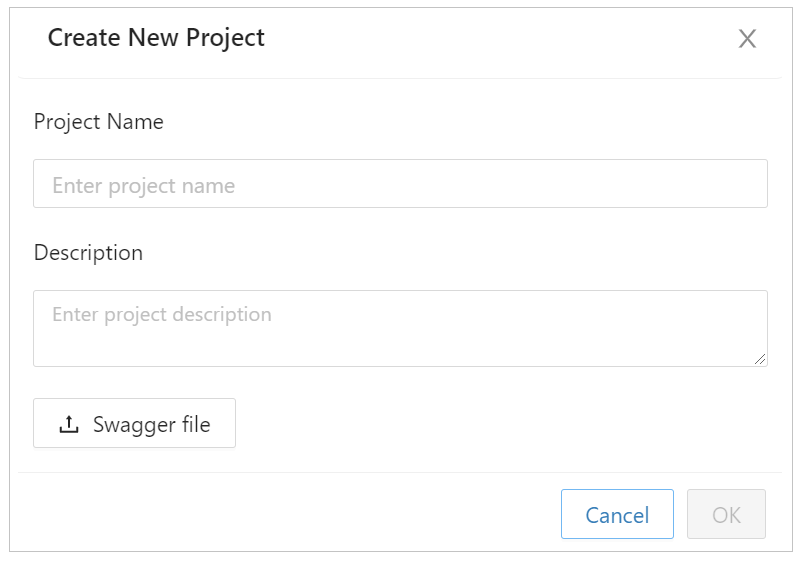
Create new Project
- 1. Click Create a Project card.
-
2. Input Project Name. (*)
- Within 200 characters, string containing only one blank or only whitespaces is prohibited.
- Example: Testform, Project_sample, ...
-
3. Input Description.
- Within 500 characters.
- Example: This is my project, ...
-
4. API operations can be inserted by Swagger file
(OpenAPI 2.0 & 3.0).
After importing, the screen will display like this: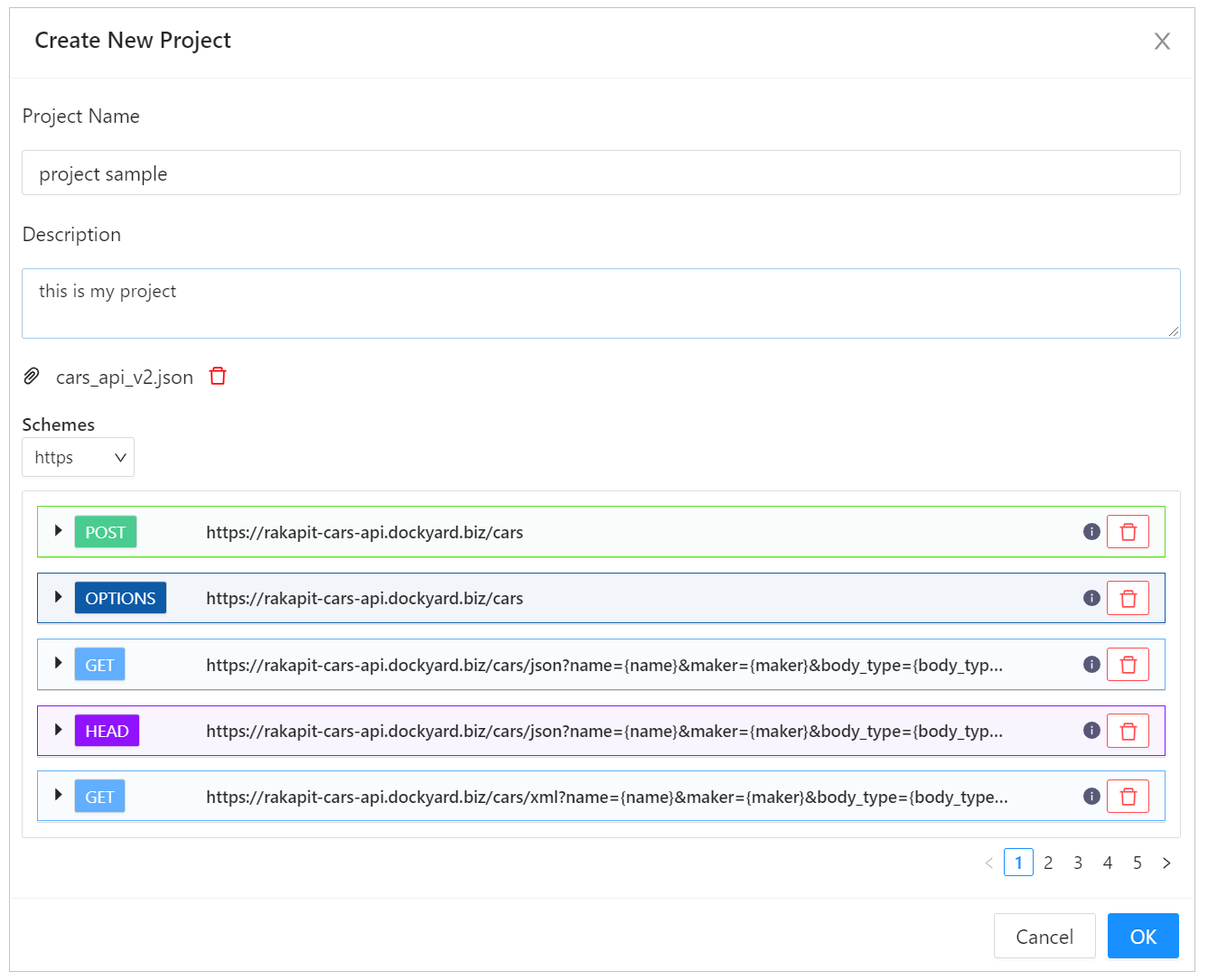
Import a swagger file - 5. Click OK button.
- ⇨ Create new Project.
※Maximum number of projects: 64.
Search Project
It's possible to search Project by Project name, Description, Creation Date at Projects screen.
- At the Projects screen, click on the search bar then select the Test object to search.
- Enter a value to search.
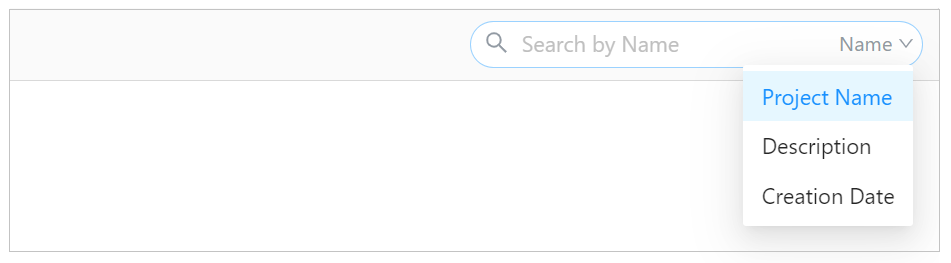
Search Project
Disable Project
When disabling the Project, you can't edit or use Test Object. If you restored Project, you can edit and use the Test Object again.
- Click the delete icon of Project
- Disable by clicking the Disable Project button
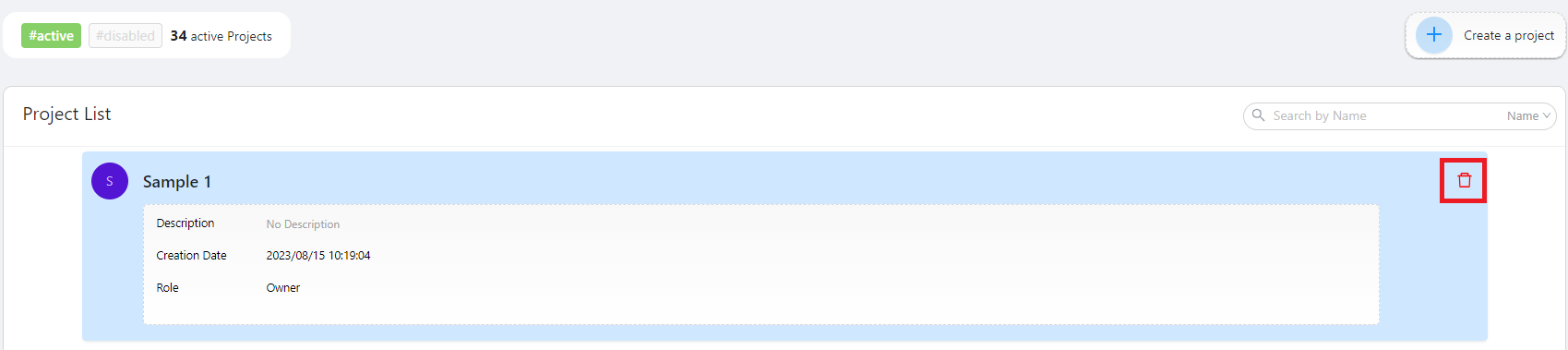
Icon Delete Project
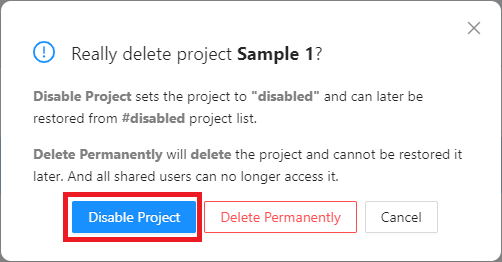
Confirmation dialog
You can check the disabled Project from #disabled on the Project List
Restore Project
You can restore the disabled Project.
- Click tab #disabled on Project List
- Select the Project you want to restore
- Click the Restore button to restore project
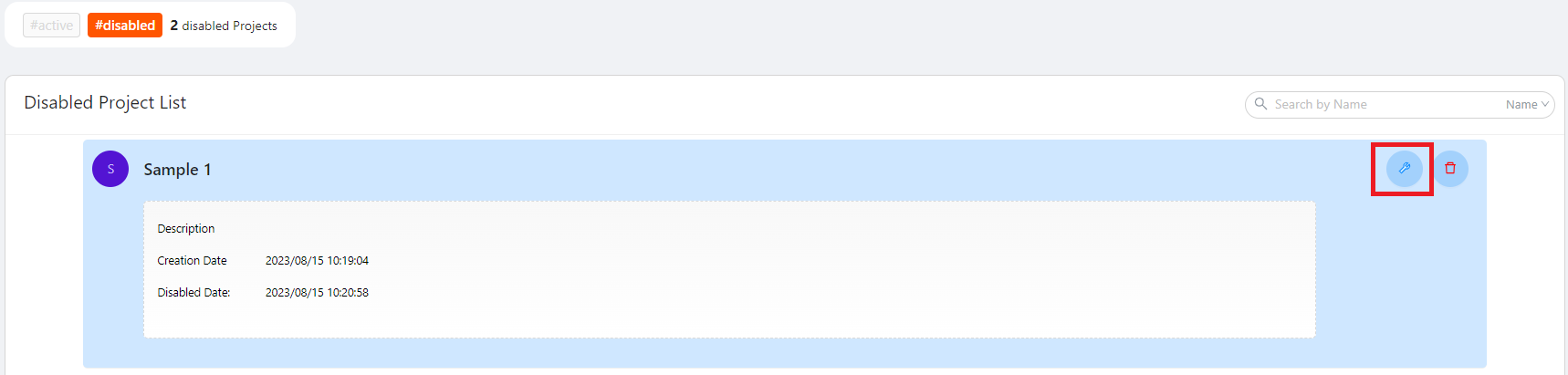
Restore Project
You can check the restored Project from #active on the Project List.
Delete Project
You can delete the Project.Please note that if you delete it, you can't restore the data.
- Click the Project Delete icon
- Click Delete Permanently button
- Clicking OK button in the confirmation dialog to delete.
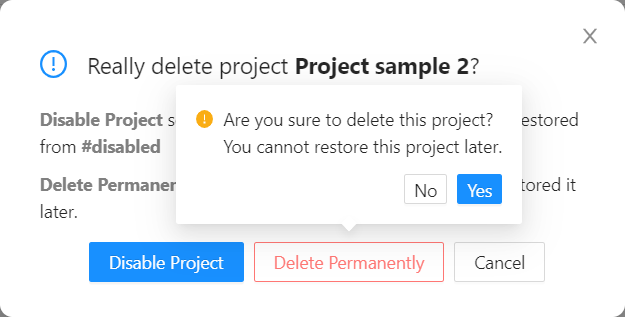
Delete Project
Share Project
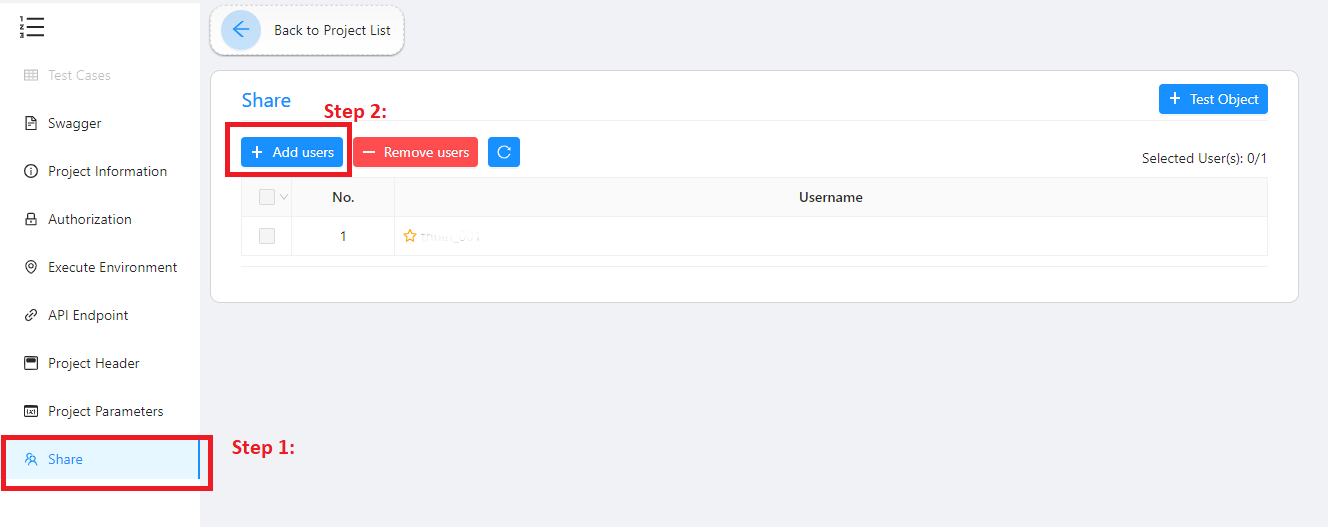
- Step 1: Select Share in Sidebar
- Step 2: Click the Add Users button
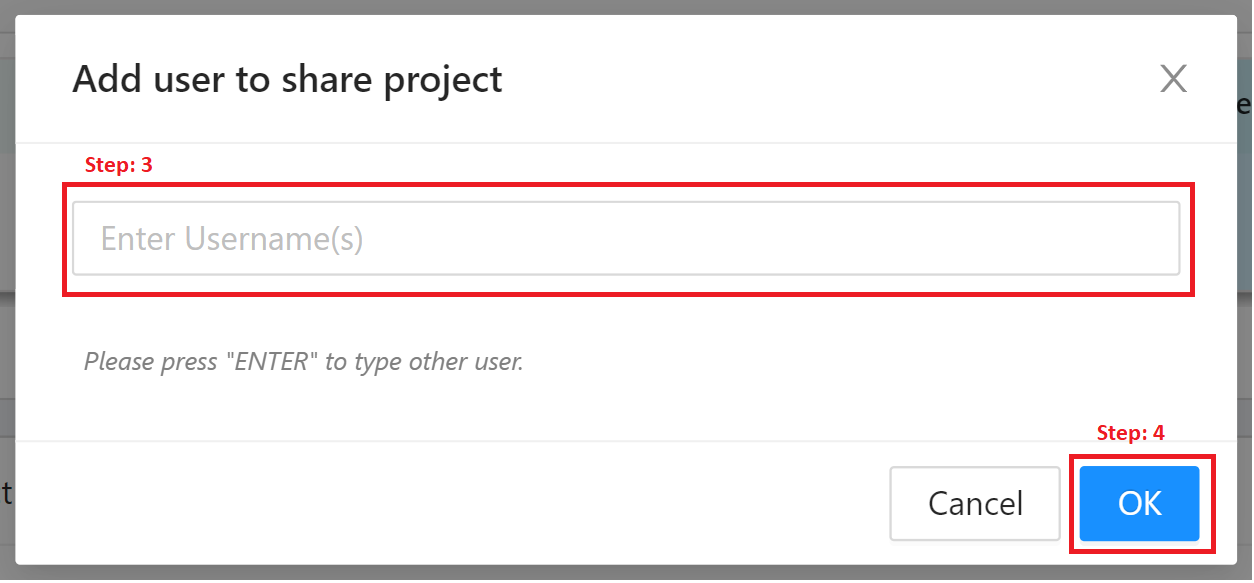
- Step 3: In the Add user to share project modal, enter the username you want to share. Multiple entries are allowed.
- Step 4: Click the OK button