Adding/Editing/Deleting Test cases
Add Test case
-
Add one Test case
-
One can be added at a time.
- Enter parameter value: (*)
- Assertion objects will be displayed corresponding to the status code. (*)
- Click on the OK button.
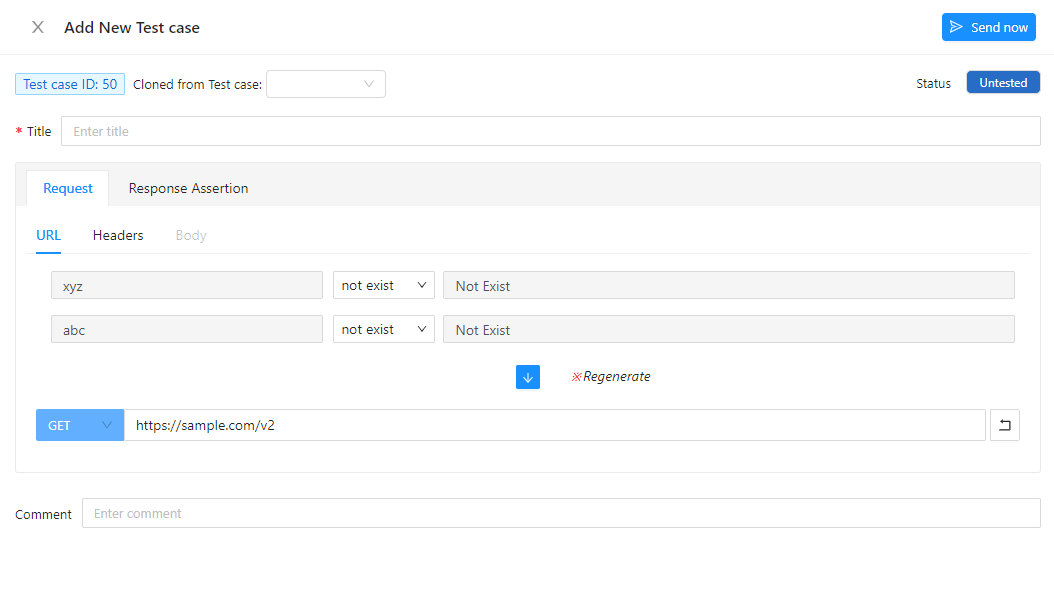
Add Test case
-
One can be added at a time.
-
Clone Test case
To save time, use the clone Test case feature.There are 3 ways to clone the Test case:

Clone Test Case- Click the Clone icon in the right corner of the Modal Detail Test case.
- Click the Clone icon in the right corner of the Modal Edit Test case.
- Or, click on + Test case button, at Cloned from Test case, select an ID to clone -> Click OK button.
-
Add multiple Test Cases
You can add test cases by combining parameter data patterns.
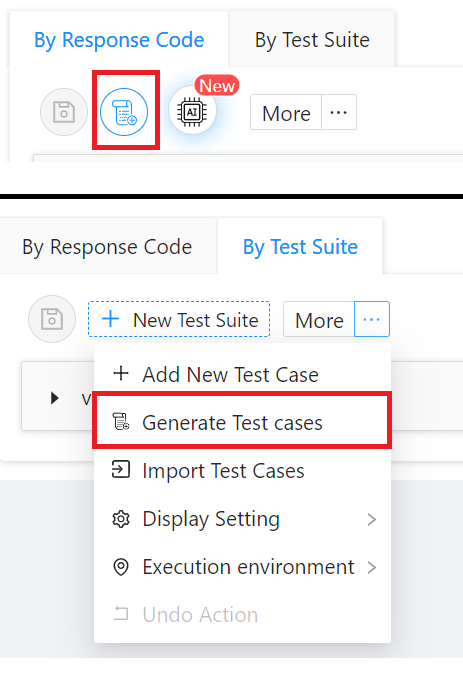
- Step 1: Click the "Generate Test cases" button at the "By Response Code" tab or "Generate Test cases" in the "More" section at the "By Test Suite" tab
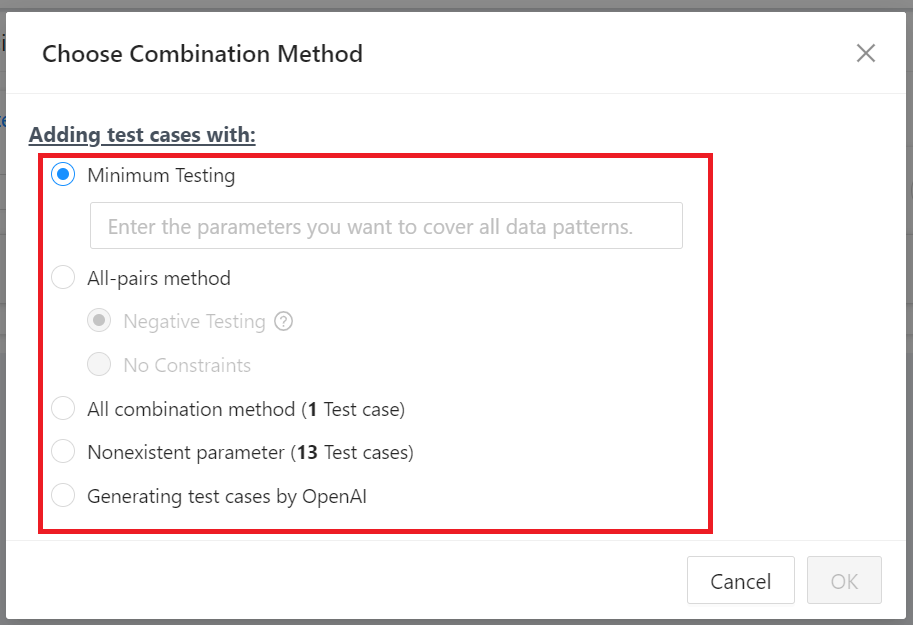
- Step 2: Select test case generation method:
- Minimum Testing: Generate a test case by select the parameters that you want to cover the data pattern.
- All-pairs method: Generate test cases using the all-pairs method. Select "No Constraints" or "Negative Testing".
- All combination method: All combinations
- Generating Test cases with a nonexistent parameter: Generate test cases where each parameter does not exist
- All combination method: All combinations
- Generate Test cases by OpenAI
- Step 3: Click the "OK" button